Release Notes: stSoftware's CMS Upgrade
New Page Controls, seperate Articles Menu and new 'Public' icon indicator on folders

stSoftware's CMS Upgrade
Includes new Page Controls which greatly advance the intuitiveness of page editing, a separate Article menu to easily set access priviledges for Article Authors, and a new icon on folders to quickly visualise when they are 'Public'.
Page Controls
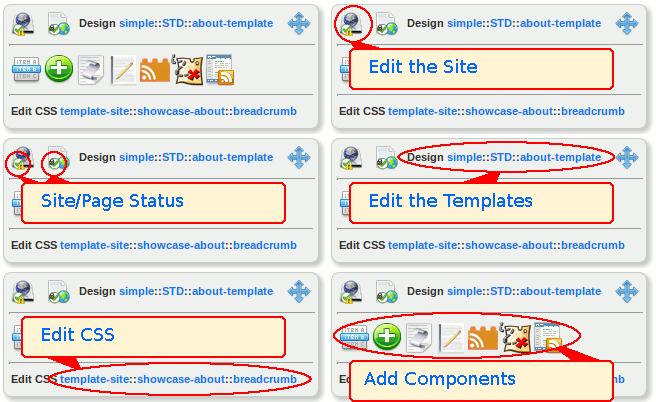
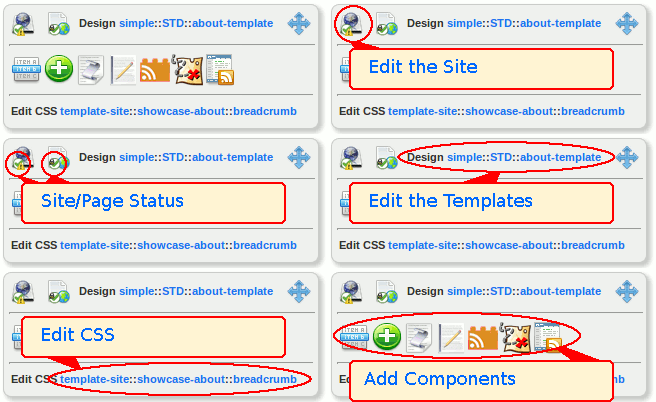
The new Page Controls, offer a simple to understand icon link straight to the exact section of the site builder to edit the site, page, template or style sheet of the page you are viewing.
- Edit the Current Site: takes you to the edit screen for the site
- the icon also conveniently shows you the publishing status of the site
- Edit the Current Page: takes you to the edit screen for that web-page
- the icon also conveniently shows you the publishing status of the web-page
- Design Parent Template: this switches you to the edit screen for the template of the page you are viewing
- Move the Controller: click and drag the Controller to another area of the web-page you are viewing
- Edit Cascading Style Sheet: go straight to the CSS for that section of the web-page to edit the CSS
We've also upgraded the Design view of web-pages so it recognises which components are from the page design and which are from the page template. This means page editors can be sure they are editing a page component not a page template component.
The Design Parent Template link on the Controller makes it easier than ever to switch to the underlying page template for editing.
Article Menu
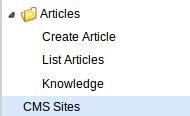
The Article menu is now listed separately from the CMS Sites so that is easier to set access permissions for Authors to access Articles, but be restricted from the CMS Sites menu which is used to build and edit websites.
'Public' Icon
This upgrade release includes a new instantly recognisable 'Public' icon to make it easy to see which folders are public.
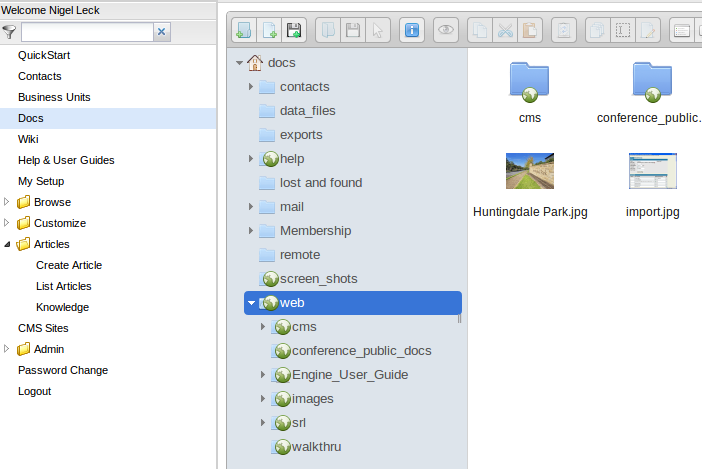
Folders may be 'private' meaning you have to be logged in and have access permission to see them or they may be 'public' so they can be seen without logging in, for example a folder containing images used on your website is 'public' so that the images can be viewed by your website visitors. Another example of a 'public' folder is the stSoftware help folder which contains the Help & User Guide files.
When you are logged in to Docs you will instantly see if you are storing files in a 'public' or 'private' folder instead of needing to click on properties to see this information.